Running/playing a project
Running the project

Since Babylon.JS Editor v4.0.0-rc.3, it is possible to play the scene currently being edited directly in the Editor. This means the scene, as it appears in the Editor, can be played directly, including all scripts that are attached to it. This is particularly useful for testing the scene itself and seeing whether the scripts/components are working as intended.
Playing the scene
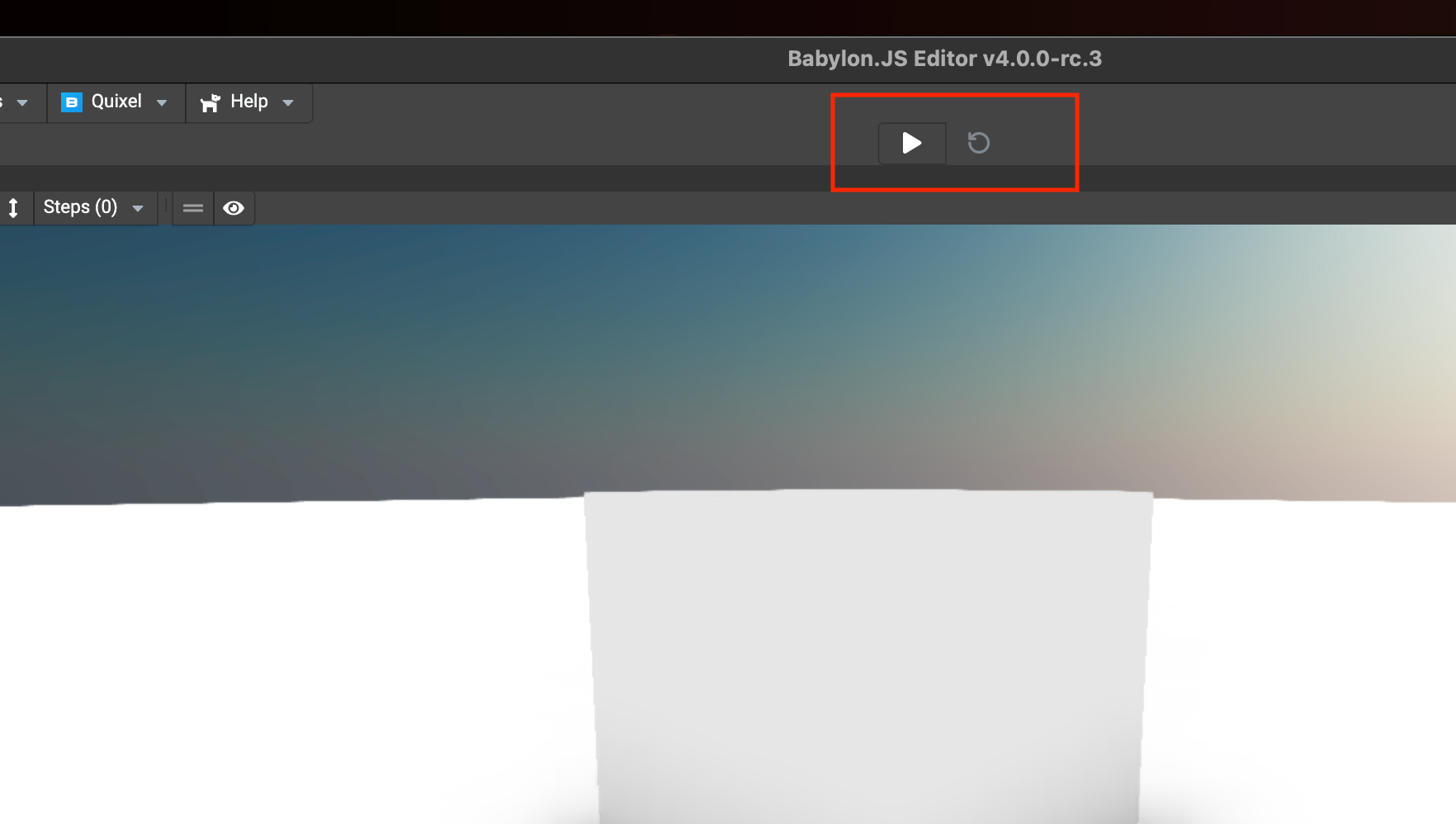
In the middle of the tools toolbar, there are 2 buttons:
- Play / Stop (on the left), which generates the scene and plays it in the Editor's preview panel.
- Restart (on the right), which simply reloads the scene to be played.
Once the play button is clicked, the scene being edited in the preview panel disappears so the test scene can be shown. Once the scene to test is loaded, you can play it and see whether all scripts are working as intended.
Debugging the scene

All templates in the Editor offer a way to debug TypeScript code directly in VSCode. Just press F5 and place breakpoints or debugger; statements in your code.
Note: type F5 before running the scene as the remote debugger will not (sometimes) be able to attach the process created on the fly to run the scene.
Once VSCode is attached to the Editor, run the scene and debug your code using your favorite shortcuts and debugging tools: