Creating Projects
The Babylon Toolkit Editor is distributed as a Unity Package Manager package. The actively maintained source of installation requirements and release files is the Babylon Toolkit Unity Exporter.
The current package requires Unity 2022.3.33f1 or later. On macOS, use an Intel version of the Unity Editor; the toolkit's image libraries do not support Apple silicon.
Create New Project
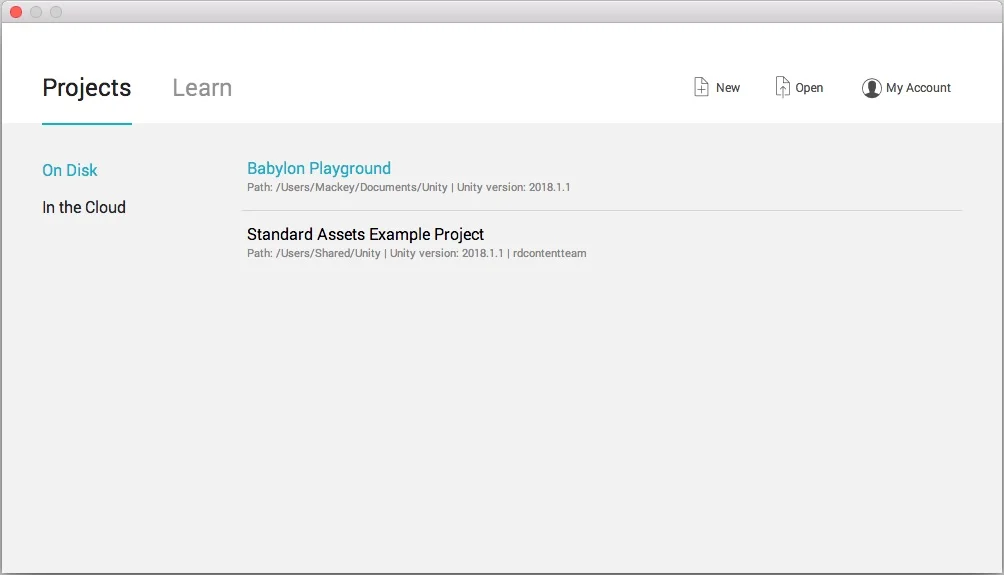
Create a Unity project with a supported editor version, then install the packages through Window > Package Manager.
Install From Git
In Package Manager, select + > Add package from git URL, then add:
- Babylon Toolkit Editor:
https://github.com/babylontoolkit/professionaledition.git - Khronos UnityGLTF:
https://github.com/babylontoolkit/unitygltf.git
These URLs and the supported Unity version are maintained in the upstream Unity Exporter installation guide.
Install a Release Tarball
To install a specific editor release, download its .tgz file from the Babylon Toolkit Editor releases. In Package Manager, select + > Add package from tarball, then select the downloaded file.
The Editor tarball does not include UnityGLTF. After installing it, select + > Add package from git URL and add https://github.com/babylontoolkit/unitygltf.git.
Set Compiler Options
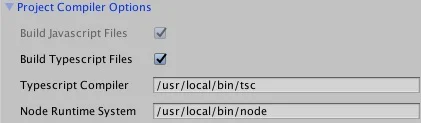
Configure the optional Runtime Script Compiler locations. You can download, install, or update the current Node Runtime in the default location. Then use Node Package Manager to install or update the latest TypeScript Compiler in the default location.
Install TypeScript Command
Mac OSX: sudo npm install -g typescript
Windows: npm install -g typescript
Default TypeScript Location
Mac OSX: /usr/local/bin/tsc
Windows: C:\Users<YourName>\AppData\Roaming\npm\node_modules\typescript\bin\tsc
Default Node Runtime Location
Mac OSX: /usr/local/bin/node
Windows: C:\Program Files\nodejs\node.exe
Compiler locations depend on how Node.js was installed. Use the paths reported by which node and which tsc on macOS, or where node and where tsc on Windows, rather than assuming the example paths above.
Configure UnityGLTF Shaders
For player builds that use UnityGLTF imports, preload the shader variant collection for the project's render pipeline:
- Open Edit > Project Settings > Graphics.
- Expand Preloaded Shaders and add an entry.
- In the Project window, open the UnityGLTF package's Runtime/Shaders/VariantCollections folder.
- Add UnityGLTFShaderVariantCollection. For the Built-In Render Pipeline, add UnityGLTFShaderVariantCollection-BiRP instead.
Without the appropriate collection, UnityGLTF shaders may be missing from the player build. See UnityGLTF's current shader setup instructions for render-pipeline and shader-stripping details.
Save Export Settings
On the Scene Exporter panel, press the Save Export Settings button to save the project export settings to disk. Export settings will also detect changes and save on each build.
Scene Configuration
-
File > New Scene - To create a new empty scene. Unity will create a main camera and a directional light by default.
-
File > Save Scene As - To name and save your current scene to a folder in your project assets. The toolkit will use this scene name for exporting content.
Set Project Settings
-
Edit > Project Settings > Player - To set the default color space setting to Linear. Unity will set color space to Gamma by default.
-
Lighting > Global Illumination - To disable Realtime Global Illumination and set the Baked Global Illumination to the desired lighting mode.
Add Scene Content
- Global Startup Scripts - If defined, the global startup script is the main entry point for every scene. You can use the global startup script to attach the SceneManager.ExecuteWhenReady handler that will be called first for each scene.
- Default Scene Controllers - Any scene options for your project can be set using whatever script components you see fit. You can optionally add an empty game object and attach a default scene controller script component to easily set up built-in options for your scene.
- Cameras, Lights And Meshes - Add any supported camera, light, and mesh content to your scene. You can attach script components, assign materials, create particle systems, set up animations, optimize geometry, and use any Unity editor tools to manage scene content.
Build And Preview
To build and preview the current scene, press the Play button or the Build And Preview button on the Scene Exporter panel. Select Export Scene File to export the current scene content without a full build and preview. This is very useful for creating Import Mesh-only scenes. All project output will be saved to the Export folder of your Unity game project.
How To Get Started
Watch the current Getting Started video for a walkthrough of the Unity Exporter.